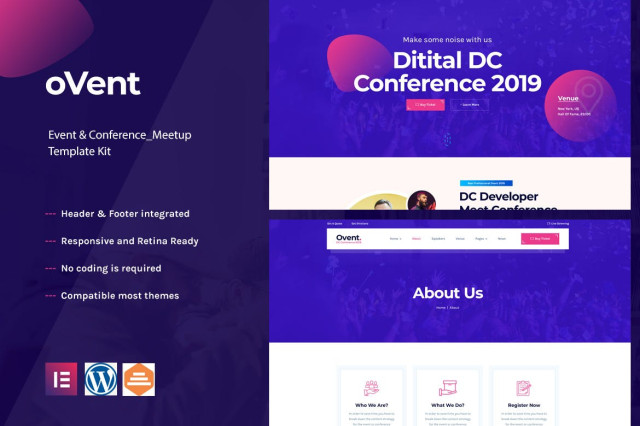
Overview
Cryptoxo is a modern Elementor Template Kit to create a pro-level and functional website for Cryptocurrency, Blockchain, Bitcoin and Altcoin ICO Landing Page, and as well as it fits also for Technology, Startup, and any kind of IT-related business.
This template kit includes carefully crafted 14+ Elementor templates featured with beautiful dark color scheme. You can build your professional, modern and functional WordPress website just a click away and without coding!
Features
- Using Free Plugins (Elementor Pro is not required)
- Modern & Clean Design
- 14+ Ready to use templates
- Fully Responsive Layout
- Retina Ready
- Fully Customizable
- Cross Browser Compatibility: Chrome, Firefox, Safari, Opera
Templates Include
- Home
- About Us
- Services
- Token Sale
- Our Team
- FAQ
- News
- Single News
- Contact
- MetForm Contact
- 404 Page
- Header
- Footer
- Global Theme Style
Required Plugin
- Elementor
- ElementsKit Lite
- Jeg Elementor Kit
- Elementor – Header, Footer & Blocks
- MetForm
How to Install
- Install and Activate the “Template Kit Import” plugin from Plugins > Add New in WordPress
- Do not unzip
- Go to Elements > Installed Kits and click the Upload Template Kit button.
- Before importing a template, ensure the Install Requirements button is clicked to activate required plugins
- For best results, do not import more than one template at a time.
Detailed Guide: https://help.market.envato.com/hc/e…rom-Envato-to-Install-Elementor-Template-Kits
How to Import Metforms
- Import the metform block templates
- Import the page template where the form appears and right-click to enable the Navigator
- Locate and select the Metform widget and click Edit Form. Choose New, then Edit Form. The builder will appear
- Click ‘Add Template’ grey folder icon.
- Click ‘My Templates’ tab.
- Choose your imported metform template, then click ‘Insert’ (click No for page settings).
- Once the template is loaded, make any desired customizations and click ‘Update & Close’ The form will appear in the template
- Click Update
Setup Global Header and Footer in ElementsKit
- Import the header and footer template
- Go to ElementsKit > Header Footer select Header and click Add New
- Give it a title, leave Entire Site selected and toggle Activation to On
- Click the template title and Edit Content
- Click the gray folder icon and select the header template to import and Update.
- Repeat for Footer
For further support, check ElementsKit > Help and Elementor > Help in WordPress menu.
What's included
- The full template kitEvery file from the developer's release, in one zip.
- Unlimited sitesInstall it on your own and your clients' sites.
- GPL licensedFree to use, study and modify.
- No paymentFree to download, no card needed.
How to install
- 1Download the zip file from this page.
- 2In WordPress, open Elementor → Tools → Import / Export Kit.
- 3Start the import, choose the zip and pick the parts you want.
Questions
Is this the developer's own release?
Yes. It is the release published by the original developer, redistributed under the GNU General Public License. The GPL allows anyone to share and resell the code.
Do I get a license key or automatic updates?
No. License keys, one-click updates and support come from the developer's own paid plans. To update, download the newer version here when it is listed and install it over the old one.
Can I use it on more than one site?
Yes. The GPL puts no limit on the number of sites, including client sites.
Why is it free?
During our launch every download that is available on GPL Store is free. Nothing is charged and no card is asked for.